Sunday, February 15, 2015

How to create a command button and assign macro to it in Excel VBA ?

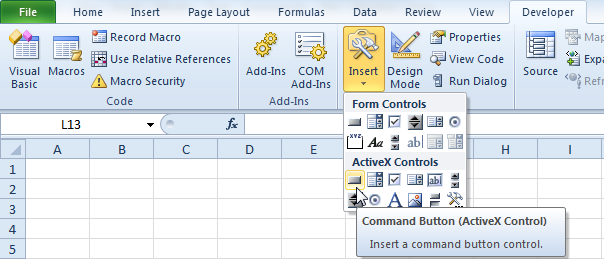
You can now click on the Developer tab which is now visible next to the View tab.
1. Click on Insert
2. Click on Command Button in the ActiveX Controls section


Create and assign the macro to our created button
We will write few lines of code and assign them to the command button.

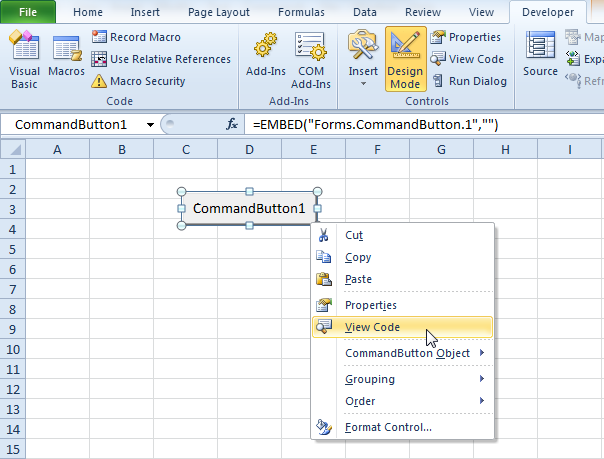
1. Right click on the CommandButton1
2. Click on View Code


3. The Visual Basic Editor will be opened. Place you cursor between 'Private Sub CommandButton1_Click()' and 'End Sub'.
4. For example, add the following code line:

Range("A1").Value = "My First Code !"


We have completed creating the simple macro and assigning it to command button.

How to turn on the Developer Tab in Excel ?

1. Click on the File tab and choose Options. This will open the Excel Options dialog box
2. Click Customize Ribbon on the left side of the dialog box
3. Under Choose commands from on the left side of the dialog box, select Popular Commands
4. Under Customize the ribbon on the right side of the dialog box, select Main tabs
5. Check the Developer check box and click OK


6. Done, you will be able to see the below developer tab activate in Excel Menu


Monday, January 12, 2015

How to Create a Macro in Excel VBA ?

To start with creating the Excel VBA macro, we will be creating a simple display message macro.

Create Macro

Using Excel VBA we can automate tasks in Excel by writing macros. A set of VBA code instructions to automate the repeated tasks or complex, time consuming tasks.

1. Press Alt + F11 to view the Visual Basic Editor

2. Select VBAProject("your excel file name")
3. Right click on on the name
4. Click Insert -- Module

Module - the codes written will be saved in the modules. you can create multiple modules, under same file to manage your codes.


On the blank editor window write below code:


Sub DisplayMessage()


MsgBox "My First VBA Macro!"


End Sub


In above code the DisplayMessage is our macro name. After executing this macro, it will give us a pop-up message with "My First VBA Macro!".


How to run this macro from Excel :

1. You can assign the code to the command button or any excel object.
2. Insert text box in excel, rename it as Display Message.
3. Right click on text box and click Assign Macro
4. Select this workbook and you will be able to see the macro name created by us
5. Select the macro name

Now if you hover the mouse over the text box, the mouse arrow will change to hand icon which means the text box is now clickable.


Now you can click on the text box and the macro will be executed. You will receive a pop-up message saying, "My First VBA Macro!"


Message box in excel VBA

The MsgBox dialog box in Excel VBA can be used in many ways to provide the required information to the users. Wherever they need to know and take actions based on that.

1. Write a simple message in Excel VBA, MsgBox "First message box code". When executed, it will display the below messagebox:


2. Combining the message box to display the value in the specific cell. If you want to display the updated or changed value in cell B4, we can use the code, MsgBox "The value in cell B4 is " & Range("B4").Value


Here in this code, we have used the & operator to concatenate the text and the value is cell B4.

3. Writing the message on the multiple lines we just need to concatenate the text with vbNewLine. for e.g., 
MsgBox "This is my first Line" & vbNewLine & "This is my second Line"


Use of Workbook and Worksheet Object

In Excel VBA we use the worksheet object to give references while working with the code. In Excel VBA there can be a object hierarchy i.e., an object can contain another object and that object can contain another object and so on.

The hierarchy starts with Excel itself, say excel is at the top of the hierarchy as an application object. The application object contains other objects. e.g., the workbook object excel file. This excel file can be any file which is open or created by us.

Now further the Excel workbook object, contains other objects, such as worksheet. Further the worksheet object contains Range objects.

The flow is like below:
Application object --> Workbook object --> Worksheet object --> Range object

When we write Range("B4").Value in the VBA code, it actuually refers as:
Application.Workbooks("your file name").Worksheet(1).Range("B4").Value

the objects as connected by dots.

Don't worry about the object hierarchy much, as you don'y need to write the code this way. This is just for your knowledge, that how the object hierarchy is connected and works.


Use of properties and methods

The collection of workbooks or worksheets have Properties, while methods are something which perform some actions with help of properties. We can see few examples below to understand this.

1. We can use the count property of the worksheets collection to count the number of worksheets in a workbook.

Sub WorksheetCount ()
MsgBox worksheets.count
End Sub


This code when executed, will give us the number of worksheets present in the workbook.


2. Similarly we can use the Add method of the workbooks collection to create a new workbook.

Sub AddWorkbook
Workbooks.Add
End Sub

This code will add the new workbook, in existing open application.

Tuesday, December 16, 2014

Working with Autofilters in Excel VBA

Use the below VBA code, to show all the records in the sheet, without removing the already applied autofilter.

Sub ViewAllData()
  If ActiveSheet.FilterMode Then
    ActiveSheet.ShowAllData
  End If
End Sub

This code can be used, where we have applied multiple filters and to remove them at once, without removing the autofilter.


Use below code to view all the records in the protected sheet.

If the worksheet is protected, with no password, we can use below code to unprotect it, show all data and then turn the protection back on.

Sub ViewAllProtected()
With ActiveSheet
    .Unprotect
    .ShowAllData
    .Protect _
        Contents:=True, _
        AllowFiltering:=True, _
        UserInterfaceOnly:=True
End With
End Sub


Similarly we can use the below code to view all records in the password protected sheet

Sub ViewAllProtectedPwd()
Dim p As String
p = "password"
With ActiveSheet
    .Unprotect Password:=p
    .ShowAllData
    .Protect _
        Contents:=True, _
        AllowFiltering:=True, _
        UserInterfaceOnly:=True, _
        Password:=p
End With
End Sub


Check and apply the Auto Filter

Below code will check if the auto filter is already applied in the sheet. If already applied then the code will exit, else it will apply the filter to the data.

Sub CheckAutoFilter()
  If Not ActiveSheet.AutoFilterMode Then
    ActiveSheet.Range("A1").AutoFilter
  End If
End Sub


Removing the Autofilter

We can use the below code to remove excel AutoFilter using VBA code, if the autofilter already exists in the sheet.

Sub RemoveAutofilter()
  Worksheets("Sheet1").AutoFilterMode = False
End Sub

If there is no Autofilter already applied in the sheet, then the code will exit without executing anything.


Below code will help you to copy filtered rows

This code will copy the filtered rows to the sheet2 of the worksheet.

Sub CopyfilteredRows()

Dim r1 As Range, r2 As Range

With ActiveSheet.AutoFilter.Range
 On Error Resume Next
   Set r2 = .Offset(1, 0).Resize(.Rows.Count - 1, 1) _
       .SpecialCells(xlCellTypeVisible)
 On Error GoTo 0
End With

If r2 Is Nothing Then
   MsgBox "No data available to copy"
Else
   Worksheets("Sheet2").Cells.Clear
   Set r1 = ActiveSheet.AutoFilter.Range
   r1.Offset(1, 0).Resize(r1.Rows.Count - 1).Copy Destination:=Worksheets("Sheet2").Range("A1")
End If

   ActiveSheet.ShowAllData

End Sub


Counting visible rows in a filter

The below code will help us to get the number of total rows and out of which how many are visible.

Sub CountVisibleRows()

Dim r As Range
Set r = ActiveSheet.AutoFilter.Range

MsgBox r.Columns(1).SpecialCells(xlCellTypeVisible).Count - 1 & " of " & r.Rows.Count - 1 & " Records"

End Sub

This code can be used where for example, we are counting the number of students in Group A. With the group as filtered using VBA code and the above message box code will provide us with the total and filtered row numbers.

Monday, December 15, 2014

10 tips when starting to code in Excel VBA

1. Make Use of the Macro Recorder
Microsoft Excel has a built in Macro recording feature, which give us a great way to learn about new objects and how to use them. I use the macro recorder whenever required to get the objects code in the part of my codes. The macro recorder does not always create the complete code which is required to get the best output. But is gives you the idea on how to write the code to perform specific set of actions. You have an option to record the code and then edit to get it work for the best output.

2. Make use of the immediate window

Excel VBA editor has a feature of the immediate window, which can be of great help while coding. You can write any VBA statements and get the resluts immediately on the immediate window. For example, say cell A1 = How ? and Cell A2 = by pdaphal.blogspot.com way

Select cell A1 and type activecell.value and press enter in the immediate window it will return you the value in cell A1. see the sample code and output below:


?activecell.Value

How ?
?activecell.Offset(1).Value
by pdphal.blogspot.com way

3. Make use of Debug.Print
Debug.print is the best way to find out the bugs (errors) in your code. Our code sometimes does not work the way we want to, due to variable situations we receive in the data processing. By using the debug.print code, you can see the output in the immediate window, as your code / program is running.

See example below for making use of the debug.Print code.

Say cells A1:A10 have the below list of name :
Kiran
Suresh
Arun
Vijay
Vikram

use code to test debug.print in immediate window:


Sub testdebug()

Dim name As Range, namelist As Range
Set namelist = Range("A1:A5")

For Each name In namelist

Debug.Print name.Value
Next name
End Sub

4. Think from all possible angles before starting the coding

Before starting the coding, planning or execution of any complex task, thinking thouroughly is the best way to begin. Start with wrtiting the logic on the paper, about how your code is going to work and execute the different steps. Check and understand every aspects of the problem, working this way will help to understand the problem and while understanding the problem, the solution find its way to you.

5. Make use of inbuilt Methods in excel VBA

It happens to everyone of us, we write the similar codes which we have used in past again and again for executing the different tasks. for e.g., finding the text, converting the text, splitting text. Before staring to write a code, please check the already defined functions / Methods in the Excel VBA editor and make the best use of them.

Few exmamples of methods are - Sendkeys, Second, Strreverse and more. To view methods Got to VBA editor window. Click list Properties / Methods. or you can use the shortcut Ctrl + J.


6. Program your code in Blocks

While wrtiting a bigger program, find the smallest working step which can be built easily. Build this first set of code and then start coding the rest bigger steps around it. By using this we you can test your code step by step, while for a bigger tasks you have something in hand everyday which is getting tested and completed day by day. This improves your turn around time and avoids the complexities in the code.

7. Always keep the references of the important codes / formulas you dont want to search again

If you are a regular VBA user, you should keep the VBA books references handy. Good reference books provide lots of information and tips for daily VBA usage. Also, whenever you have free time, you can always refer these books to learn something new. While, learning you can also create your personal reference bank which you require the most.

8. Break your code / project into smaller pieces

The project / problem you get might be very complex, but it always is a combined problem of different small problems, We need to identify these small problems and start finding the solution for them. So, break the problem into several small pieces. This coding method is called as modularization. Below are few advantages of using the modularization method:
You can resuse the code: once we break the big program in smalled parts, we can resue this smaller part in several places or even in different projects.
Easy to test: the smaller codes are easy to test and debug. this helps us to avoid to go through the bigger program for just testing a one line code.
Easy to maintain: as the program is broken into smaller parts, it is easy to upgrade them as required.

9. Make use of VBA only when you need it

Please make the use of VBA only when you actually use it. Once you start learning VBA code, you will feel excited about using VBA for everything, but there are tasks which can be acheived by using the excel formulas. Avoid using the VBA codes to make your situation more complex. Make the best use of the excel built in features which are readily available. e.g. data validation, conditional formatting, pivot tables, formulas and more.

10. Take Challenges to learn more

If you are into everyday VBA coding user, then taking challenges is the best way to keep your VBA techniques updated and sharpened. You need to keep sharpening your VBA saw, like the same way of the woodcutter story of sharpening the saw. Try to automate the report, that your team prepares manually, try to simplify the formlas, try enhancing the already written VBA code to improve performance. This will keep your VBA skills refreshed, updated and improve your confidence of problem solving capability

Wednesday, November 26, 2014

12 must know Date functions in Excel ?

Below are few of the important functions related to date, which are available in excel. These functions bring great help in our day to day calculation activities.

1. YEAR

Formula:
=YEAR(Date)

The YEAR formula is useful, when we need to extract only the year from the date.


Example:

We have around 10000 rows with dates of different years with sales data. While we need to create a chart that shows the yearly trend of total sales. For this we need to first find out the Year using the formula:

A1 = 26-Nov-14


The formula =YEAR(A1) will give us the output as 2014. We can copy paste this formula in all cells to get the Year output. Once we have the Year, we can then create a pivot table and create a chart to show the yearly trend for Sales.


2. MONTH
Formula:
=MONTH(Date)

The MONTH formula is useful, when we need to extract only the month from the date.


Example:

The same example in the YEAR formula above, can be used here to show the monthly trend for sales.
The formula =MONTH(A1) will give us the output as 11, as the month in the date is November. Once we have the month we can create a pvot table and create a chart to show the monthly trend for sales.


3. DAY
Formula:
=DAY(Date)

The DAY formula is used to extract only the day for the month from the selected date.


Example:

We will use the same date in the above examples in cell A1. The formula =DAY(A1) will give us the output as 26. As it is the 26th Day of November. This can be useful when you need to do some analysis based on only days.


4. DATE
Formula:
=DATE(year, month, day)

The date formula can be used to seperate the date time format date with simple date. Or in case we need to convert the date into serial number.


Example:

A1 = 11/26/2014  12:39:00 PM

We need to convert the date time in cell A1 to simple date format, for that we can use the DATE formula with the combination of above three formulas i.e., YEAR, MONTH and DAY.

The formula =DATE(YEAR(A1),MONTH(A1),DAY(A1)) will give the output as 11/26/2014.

This formula can also be used with combination of other formulas to convert the text into Date formats.

eample: A2 = 20141126 and we need to convert this in simple date format. We can use the DATE formula with the combinations of the LEFT, MID and RIGHT function:
=DATE(LEFT(A2,4),MID(A2,5,2), RIGHT(A2,2))

This will give us the output as 11/26/2014.


5. DAYS360
Formula:
=DAYS360(Start Date, End Date, Method)

The DAYS360 feature returns the number of days between two dates based on a 360-day year (twelve 30-day months), which is used in some accounting calculations. We can use this function to help compute payments if your accounting system is based on twelve 30-day months.


The method in the above formula is optional, you can use it only if you need some specific methods mentioned below for computing.


FALSE or omitted:

U.S. (NASD) method. If the starting date is the last day of a month, it becomes equal to the 30th day of the same month. If the ending date is the last day of a month and the starting date is earlier than the 30th day of a month, the ending date becomes equal to the 1st day of the next month; otherwise the ending date becomes equal to the 30th day of the same month.

TRUE:

European method. Starting dates and ending dates that occur on the 31st day of a month become equal to the 30th day of the same month.
Note:
Excel stores the dates as sequential serial numbers so that they can be used in calculations. By default, January 1, 1900 is serial number 1, and January 1, 2014 is serial number 41,640 because it is 41,639 days after January 1, 1900.


6. EDATE
Formula:
=EDATE(Start Date, Months)

This is an very useful date function which helps us to get the future or past dates after or before specific date.
The EDATE formula can be used to calculate the warranty expiring dates from the date of purchase, maturity dates or due dates that fall on the same day of the month as the date of issue.
Example:
Say we need to find out the date after 18 months and the date in cell A1 = 31-Dec-14, then the formula =EDATE(A1,18) will give us the output as 30-Jun-16. Another example of finding past dates for 19 days, the the formula =EDATE(A1,-19) will provide us the output as 31-May-13.


7. EOMONTH
Formula:
=EOMONTH(Start Date, Months)

The EOMONTH formula is somewhere similar to the  EDATE function, the only difference here is that this formula returns the last date of the output month. This formula can be used to caluclate the due dates or maturity dates that always fall on the last day of the month.

Example:
Say we need to find out the date after 12 months and the date in cell A1 = 26-Nov-14, then the formula =EOMONTH(A1,12) will give us the output date as 30-Nov-15. Similarly to find out the past 12 month date, we can use the formula =EOMONTH(A1,-12), which will give us the output as 30-Nov-13.


8. NETWORKDAYS
Formula:
=NETWORKDAYS(Start Date, End Date, # of holidays)

The NETWORKDAYS formula give us the number of only working days between Start Date and End Date. Working days exclude weekends and any dates identified in holidays. We can use the NETWORKDAYS formula to calculate the employee benefits that accrue based on the number of days worked during a specific term.

The # of holidays in the above formula, is an optional range of one or more dates to exclude from the working calendar, such as the government holidays. The list can be a range of cells that contains the dates.
Example:
A1 = 1-Nov-14 and A2 = 26-Nov-14

Then the formula =NETWORKDAYS(A1,B1) will give us the output as 18 days. This formula excludes the weekends from the days difference count. In one more example where we have holidays, say we have the dates in cell C1 = 4-Nov-14 and C2 = 5-Nov-14, then the formula =NETWORKDAYS(A1,B1,C1:C2) will give us the output as 16, now in this formula the weekends + holidays listed in C1 and C2 are excluded in the days.


9. NOW
Formula:
=NOW()

The NOW formula give us the current date and time. If the cell format was General before the function was entered, Excel changes the cell format to the same date and time format that is specified in the regional date and time settings in Control Panel.

The NOW function is useful when you need to display the current date and time on a worksheet or calculate a value based on the current date and time, and have that value updated each time you open the worksheet.

Note:
If the NOW function does not update cell values when you expect it to, you might need to change settings that control when the workbook or worksheet recalculates. In the Formulas category under Calculation options, make sure that Automatic is selected to calculate the formulas automatically.
Example:
The formula =NOW() will give us the output as 11/26/2014 14:36, this is the current date and time when the function was entered in excel. This date and time will keep on changing, whenever the sheet reclculates or whenever the sheet is re-opened. This function will always return the current date and time in the system.


10. TODAY
Formula: =TODAY()

The formula =TODAY() will return the current date. If the cell format was General before the function was entered, Excel changes the cell format to Date. The TODAY function is useful when you need to have the current date displayed on a worksheet, regardless of when you open the workbook. It is also useful for calculating intervals.

Example:
You can calulate the age of the person. Say if your birth year is 1984 which is the value in cell A1 and =today() in cell A2, then the below formula can be use to find that person's age as of this year's birthday:
=YEAR(A2)-A1 this formula will give us the output as 30.

in above formula we have used the YEAR formula to get the YEAR from TODAY() and then subtracted it to the birth year i.e., 2014-1984 = 30 yrs.


11. WEEKNUM
Formula:
=WEEKNUM(Date,Day)

The WEEKNUM formula provides us with the week number of a specific date.
For example, the week containing January 1 is the first week of the year, and is numbered week 1.

There are two systems used for this function:
System 1:  The week containing January 1 is the first week of the year, and is numbered week 1.
System 2:  The week containing the first Thursday of the year is the first week of the year, and is numbered as week 1.

Example:
A1 = 1-Nov-14
The formula =WEEKNUM(A1) will give us the output as week 45. Say we use the formula,
=WEEKNUM(A1,2), this formula will give us the output as 44. Here the 2 represents the week starting on Monday or if we use 1 then week starting on Sunday. In case of 1 in the same formula the output will be 45. If nothing is entereted in the Day part in above formulam, then the WEEKNUM will by default consider 1(Sunday) to calculate the week number.
The formula


12. WEEKDAY
Formula:
=WEEKDAY(Date,Type)

The WEEKDAY formula gives us the the day of the week corresponding to a date. The day is given as an integer, ranging from 1 (Sunday) to 7 (Saturday), by default.

Example:
A1 = 1-Nov-14
The formula =WEEKDAY(A1) will give us the output as 7 which is Saturday i.e., 7th day of the week. If you further use the formula =WEEKDAY(A1,2) will give you the output as 6. Here the WEEKDAY is starting from 2 (Monday) hence, from monday Staturday is the 6th Day, hence the formula returns 6th Day of the week.

Note:
By default the WEEKDAY formula considers the weekstart from day 1(Sunday). To change this further you can use 1,2 3....
Friday, November 21, 2014

What are the Logical and Reference functions in Excel ?

1. AND
Formula:
=AND(Condition 1, Condition 2, ...)

Returns TRUE if all the conditions are met, ie.e., evaluated to TRUE; returns FALSE if one or more conditions are not met, i.e., evaluated to FALSE.

One common use for the AND function is to expand the usefulness of other functions that perform logical tests. For example, the IF function performs a logical test and then returns one value if the test evaluates to TRUE and another value if the test evaluates to FALSE. By using the AND function as the logical_test argument of the IF function, you can test many different conditions instead of just one.

Note:
The data must evaluate to logical values, such as TRUE or FALSE, or the conditions must be arrays or references that contain logical values.
If an array or reference data contains text or empty cells, those values are ignored.
If the specified range contains no logical values, the AND function returns the #VALUE! error value.

Example:
A1 = 90

The formula =AND( 9<A1, A1<99) gives us the result as TRUE
The formula =AND( 9>A1, A1<99) will give us the result as FALSE, as the first condition is not met i.e., 9 is not greated than 90.


2. IF
Formula:
=IF(logical test, value if logical test true, value if if logical test false)

The IF function returns one value if a condition you specify is met i.e., evaluated to TRUE, and another value if that condition evaluates to FALSE.

Example:
A1 = 21
The formula =IF(A1>20,"Over 20","20 or less") returns "Over 20" if A1 is greater than 20, and "20 or less" if A1 is less than or equal to 20.

Note:
Up to 64 IF functions can be nested as value_if_true and value_if_false arguments to construct more elaborate tests. If any of the arguments to IF are arrays, every element of the array is evaluated when the IF statement is carried out. Excel provides additional functions that can be used to analyze your data based on a condition. For example, to count the number of occurrences of a string of text or a number within a range of cells, use the COUNTIF or the COUNTIFS worksheet functions. To calculate a sum based on a string of text or a number within a range, use the SUMIF or the SUMIFS worksheet functions.


3. IFERROR
Formula:
=IFERROR(value, value if error)

This function returns a value you specify if a formula evaluates to an error; otherwise, returns the result of the formula. Use the IFERROR function to trap and handle errors in a formula.

Note:
The value to return if the formula evaluates to an error. The following error types are evaluated: #N/A, #VALUE!, #REF!, #DIV/0!, #NUM!, #NAME?, or #NULL!.If value or value_if_error is an empty cell, IFERROR treats it as an empty string value ("").If value is an array formula, IFERROR returns an array of results for each cell in the range specified in value.

Example:
A1 = 10, B1 = 5
A2 = 10, B2 = 0

The formula =IFERROR(A1/B1,"Check the numbers in calculation") will return output as 2, as there is no error in the calculation.
The formula =IFERROR(A2/B2,"Check the numbers in calculation") will return output as "Check the numbers in calculation", as 10/0 will retrun us with #DIV/0! error.


4. OR
Formula:
=OR(Conditon 1, Conditon 2, ...)

This formula returns TRUE if any of the conditions are TRUE; returns FALSE if all the conditions are FALSE.

The conditions must evaluate to logical values such as TRUE or FALSE, or in arrays or references that contain logical values.
If an array or reference argument contains text or empty cells, those values are ignored.
If the specified range contains no logical values, OR returns the #VALUE! error value.
You can use an OR array formula to see if a value occurs in an array. To enter an array formula, press CTRL+SHIFT+ENTER.

Example:
The formula =OR(1+1=2, 2+2=4) will give us output as TRUE
The formula =OR(1+1=2, 2+2=2) will give us output as TRUE
The formula =OR(1+1=1, 2+2=2) will give us output as FALSE

in first example both the conditions are true, hence the output is TRUE.
in second exmaple first condition is true, hence the output is TRUE.
in third example both the conditions are false, hence the output is FALSE.


5. CHOOSE
Formula:
=CHOOSE(index number, value1, value2, ...)

This function uses the index number to return a value from the list of value arguments. Use CHOOSE to select one of up to 254 values based on the index number.

Example:
If value1 through value7 are the days of the week, CHOOSE returns one of the days when a number between 1 and 7 is used as Index Number.

A1 = 21-Nov-2014, A2 = Weekday(A1) output in A2 = 6

=CHOOSE(A2,"Sun","Mon","Tue","Wed","Thu","Fri","Sat") will return as output as Fri, as Fri is the the sixth value in the CHOOSE function.

we can further merge the weekday formula to work with CHOOSE:
=CHOOSE(Weekday(A1),"Sun","Mon","Tue","Wed","Thu","Fri","Sat")

Note:
If index_num is an array, every value is evaluated when CHOOSE is evaluated.
The value arguments to CHOOSE can be range references as well as single values.


6. COLUMN
Formula:
=COLUMN(reference)

This formula returns the column number of the given cell reference. For example, the formula =COLUMN(E9) returns 5, because column E is the fifth column.

Note:
If the reference data is a range of cells, and if the COLUMN function is not entered as a horizontal array formula, the COLUMN function returns the number of the leftmost column.
If the reference data is omitted, it is assumed to be the reference of the cell in which the COLUMN function appears.
The reference data cannot refer to multiple areas.


7. HLOOKUP
Formula:
=HLOOKUP(lookup value, data range, row index number, range lookup)

The Hlookup function searches for a value in the top row of a table or an array of values, and then returns a value in the same column from a row you specify in the table or array.

We can Use HLOOKUP when our comparison values are located in a row across the top of a table of data, and we want to look down a specified number of rows. The H in HLOOKUP stands for "Horizontal."

Note:
If HLOOKUP can't find lookup_value, and range_lookup is TRUE, it uses the largest value that is less than lookup_value.
If lookup_value is smaller than the smallest value in the first row of table_array, HLOOKUP returns the #N/A error value.
If range_lookup is FALSE and lookup_value is text, you can use the wildcard characters, question mark (?) and asterisk (*), in lookup_value. A question mark matches any single character; an asterisk matches any sequence of characters. If you want to find an actual question mark or asterisk, type a tilde (~) before the character.
For example of HLOOKUP click here.


8. INDEX
Formula:
=INDEX(data range, row number, column number)

The INDEX formula returns a value or the reference to a value from within a table or range. The INDEX function returns the value of an element in a table or an array , selected by the row and column number indexes.

Note:
If both the row number and column number values are used, the INDEX returns the value in the cell at the intersection of row number and column number.
If you set row number or column number to 0 (zero), the INDEX returns the array of values for the entire column or row, respectively. To use values returned as an array, enter the INDEX function as an array formula in a horizontal range of cells for a row, and in a vertical range of cells for a column. To enter an array formula, press CTRL+SHIFT+ENTER.
Row number and column number must point to a cell within array; otherwise, INDEX will return the #REF! error value.
Example:
A1 = Orange, B1 = Grapes, A2 = Watermelon and B2 = Pears

The formula =INDEX(A1:B2,2,2) will give us the output as Pears, as the pears is located in the 2nd row and 2nd column of the array.

Similarly the formula =INDEX(A1:B2,2,1) will return the output as Watermelon.


9. INDIRECT
Formula:
=INDIRECT(reference text, range)

This function returns the reference specified by a text string. References are immediately evaluated to display their contents. We can use INDIRECT when we need to change the reference to a cell within a formula without changing the formula itself.

Note:
If the referenc text is not a valid cell reference, INDIRECT returns the #REF! error value.
If the reference text refers to a cell range outside the row limit of 1,048,576 or the column limit of 16,384 (XFD), INDIRECT returns a #REF! error.
This behavior is different from Excel versions earlier than Microsoft Office Excel 2007, which ignore the exceeded limit and return a value.

Example:
A1 = Sanjay, B1 = 100,
A2 = Kiran, B2 = 200,
A3 = Vijay, B3 = 150

The formula =INDIRECT($A$2) will give us output as 200, as this is the value of our reference Kiran in cell A2.
Similarly the formula =INDIRECT($A$3) will give us output as 150


10. MATCH
Formula:
=MATCH(value we need to lookup, lookup data range, match type)

The MATCH function searches for a specified item in a range of cells, and then returns the relative position of that item in the range. For example, if the range A1:A3 contains the values 9, 99, and 39, then the formula
=MATCH(99,A1:A3,0) will give us the output as the number 2, because 99 is the second item in the range.

MATCH is a very useful function to locate the position of the data. MATCH can be merged with the INDEX function to find the row and column index number.

Note:
MATCH returns the position of the matched value within lookup array, not the value itself. For example, MATCH("b",{"a","b","c"},0) returns 2, which is the relative position of "b" within the array {"a","b","c"}.
MATCH does not distinguish between uppercase and lowercase letters when matching text values.
If MATCH is unsuccessful in finding a match, it returns the #N/A error value.
If match type is 0 and lookup value is a text string, you can use the wildcard
characters — the question mark (?) and asterisk (*) — in the lookup value argument. A question mark matches any single character; an asterisk matches any sequence of characters. If you want to find an actual question mark or asterisk, type a tilde (~) before the character.

Example:
A1 = Oranges,        B1 = 9,
A2 = Grapes,          B2 = 19,
A3 = Pears,            B3 = 29,
A4 = Watermelon,   B4 = 39

The formula =MATCH(39, B1:B4,0) will give us the output as 4, as it is the fourth positon of 39 in our array. (0 is for exact match)

Similarly the formula =MATCH(30, B1:B4,1) will give us the output as 3, as the lowest number close to 30 is 29 and the position of 29 is the third positon in our array. (1 is for approximate match)