Friday, November 21, 2014

Let's learn some Text functions in excel

1. CONCATENATE
Formula:
=CONCATENATE(A1," ",B1," ",C1)

Concatenate formula is used to combine two or more words in single cell.

Example:

Cell A1 = Vinod, B1 = Shyam, C1 = Verma
with the above formula, we will get the result as "Vinod Shyam Verma" in single cell. The " " is used for creating space between two words.

This can also be acheived by directly writing formulas as:
=A1 & " " & B1 & " " & C1
here & is used in place of comma's to directly concatenate the words.


2. FIND
Formula:
=FIND(find_text, within_text, [start_num])

The FIND function is used to locate the position of one text within a second text , and return the number of the starting position of the first text from the first character of the second text.

Example:
The formula =FIND("t","complete") will give output as 7, as t is located on 7th number in the word.
The formula =FIND("a","complete") will return error as #VALUE!, as the text to find is not present in the word.

FIND is case sensitive and does not allow wildcard characters.
If find_text is "" (empty text), FIND matches the first character in the search string (that is, the character numbered start_num or 1).
If start_num is not greater than zero, FIND returns the #VALUE! error value.
Use start_num to skip a specified number of characters. Using FIND as an example, suppose you are working with the text string "FYA2014.YouthSignsRoute". To find the number of the first "Y" in the descriptive part of the text string, set start_num equal to 8 so that the serial-number portion of the text is not searched. FIND begins with character 8, finds find_text at the next character, and returns the number 9. FIND always returns the number of characters from the start of within_text, counting the characters you skip if start_num is greater than 1.


3. MID
Formula:
=MID(text, start number, number of characters)

These formulas return the number of characters from a text string. MID gives you the specified number of characters from the middle of the word.

You can specify in the MID formula where to start with the start_number and then it counts the specified number of characters to the right of the start_number.
A1 = "How are you"
Use the MID formula to get the middle word.
=MID(A1,5,3) formula gives us the word "are" from "How are you".


4. LEFT
Formula:
=LEFT(text, number of characters)

These formulas return the number of characters from a text string. LEFT gives you the number of characters from the left.
In the below example we have used the LEFT formula to get the first word.
A1 = "How are you"
=LEFT(A1,1) formula gives  us the word "H" from "how are you".


5. RIGHT
Formula:
= RIGHT(text, number of characters)

These formulas return the number of characters from a text string. RIGHT gives you the number of characters from the right of the text string.

A1 = "How are you"
Use the RIGHT formula to get the last word.
=RIGHT(A1,3) formula gives us the word "you" from "How are you"


6. LEN

Formula:
=LEN(text)

LEN returns the number of characters in a text string, including spaces.

Example:
consider, cell A1 and A2 has below text respectively
A1 =How are you
A2 =Howareyou

=LEN(A1) will give you result as 11, as it also counts spaces between words
=LEN(A2) will give you result as 9, as there are no spaces


7. LOWER
Formula:
=LOWER(text)

Converts all uppercase letters in a text string to lowercase. LOWER does not change characters in text that are not letters.
Example:
The formula =LOWER(Earn Your Way) will give output as "earn your way"
The formula =LOWER(E3. B23 Way) will give output as "e3. b23 way"


8. UPPER
Formula:
=UPPER(text)

Converts all lowercase letters in a text string to uppercase. UPPER does not change characters in text that are not letters.

Example:
The formula =UPPER(your way) will give output as "YOUR WAY"
The formula =LOWER(neat) will give output as "NEAT"


9. PROPER
Formula:
=PROPER(text)

The PROPER formula Capitalizes the first letter in a text string and any other letters in text that follow any character other than a letter. Converts all other letters to lowercase letters.

Example:
A1 = this is a HEADING
A2 = 99ReaDing
The formula =PROPER(A1) will give output as "This Is A Heading"
The formula =PROPER(A2) will give output as "99Reading"


10. REPT
Formula:
=REPT(text, number_times)

This function Repeats the text a given number of times. We can use the REPT to fill a cell with a number of instances of a text string.
Note:
If number_times is 0 (zero), REPT returns "" (empty text).
If number_times is not an integer, it is truncated.
The result of the REPT function cannot be longer than 32,767 characters, or REPT returns #VALUE!.
Example:
The formula =REPT("%",5) will give output as %%%%%
The formula =REPT("Why",2) will give output as WhyWhy


11. SUBSTITUTE
Formula:
=SUBSTITUTE(the source text, old text to replace, new text to replace old text, instance number)

Substitutes new_text for old_text in a text string. Use SUBSTITUTE when you want to replace specific text in a text string; use REPLACE when you want to replace any text that occurs in a specific location in a text string.

Here instance number is optional, it is used only when the text or number you want to replace is repeating more than once.

Example:
A1 = Exam Dashboard
A2 = Q3, 1933

The formula =SUBSTITUTE(A1,"Exam","Result") will give output as "Result Dashboard)
The formula =SUBSTITUTE(A2,"3","8",2) will give output as "Q3, 1983", here in this example the 2nd instance of 3 is replaced with 8.


12.TRIM
Formula:
=TRIM(A1)

You can use this functon to remove any space in a cell, except for single spaces between words. This formula is extremely useful because very often we run into situations where you pull data from a database and for some reason extra spaces are put in behind or in front of the data. This can create big mess if you are trying to compare using IF statements or VLOOKUP’s.
Example:
The formula =Trim( Why) will give output as "Why", the space before Why is removed.
The formula =Trim(When  ) will give output as "When", the spaces at the end of When are removed.


13. VALUE
Formula:
=VALUE(text)

This formula converts a text that represents a number to a number.

Text can be in any of the constant number, date, or time formats recognized by Microsoft Excel. If text is not in one of these formats, VALUE returns the #VALUE! error value.

You do not generally need to use the VALUE function in a formula because Excel automatically converts text to numbers as necessary. This function is provided for compatibility with other spreadsheet programs.
Example:
The formula =VALUE("2.999") will give output as 2.999.
The formula =VALUE("why") will give output as error, as there is no integer value to convert.


14. EXACT
Formula:
=EXACT(text1, text2)

Compares two text strings and returns TRUE if they are exactly the same, FALSE otherwise. EXACT is case-sensitive but ignores formatting differences. Use EXACT to test text being entered into a document.

Example:
A1 = Love and B1 = love
A2 = flower and B2 = flower

The formula =EXACT(A1,B1) will give output as FALSE.
The formula =EXACT(A2,B2) will give output as TRUE.

Thursday, November 20, 2014

Good to know mathematical functions in Excel ?

1. AVERAGE
Formula:
=AVERAGE(A1:A9)

Average formula returns the average (arithmetic mean) of the selected data. For example, if the data range A1:A9 contains numbers, the formula =AVERAGE(A1:A9) returns the average of those numbers.

Description:
AVERAGE(number1, [number2], ...)

Number1  is required. The first number, cell reference, or range for which you want the average.
Number2, is  optional. Additional numbers, cell references or ranges for which you want the average, up to a maximum of 255.

Average is the arithmetic mean, and is calculated by adding a group of numbers and then dividing by the count of those numbers.

Example:
The average of 2, 7, 4, 8, 6, and 9 is 36 divided by 6, which is 6.


2. INT
Formula:
=INT(number)

Rounds a number down to the nearest integer. i.e. this function converts the decimal number to the integer lower than it.

Example :
The formula =INT(9.234) will give output as 9

Note:
INT will not roundoff the number but converts the decimal number to lowest round number. e.g. =INT(9.564) will also give output as 9


3. MOD
Formula:
=MOD(Number, Divisor)

This function returns the remainder after number is divided by divisor. The result of this function has the same sign as divisor.

Note:
If divisor is 0, then the MOD function returns the #DIV/0! error value.

Example :
=MOD(6,9) will give output as 6
=MOD(-6,-9) will give output as -6, as mentioned above, the output sign remains same as divisor sign


4. RAND
Formula:
=RAND()

The RAND function returns an evenly distributed random real number greater than or equal to 0 and less than 1. A new random real number is returned every time the worksheet is calculated.

If you want to use RAND to generate a random number but don't want the numbers to change every time the cell is calculated, you can enter =RAND() in the formula bar, and then press F9 to change the formula to a random number. You will get a one random number for once and the formula will be replaced by the number.

Example:
The formula =RAND()*90 will give output with a random number greater than or equal to 0 but less than 90. You can change the 90 in this formula, to the number you want.


5. ROUND
Formula:
=ROUND(A1, 2)

The ROUND function rounds a number to a specified number of digits.

Example:
If cell A1 contains 99.5682, and you want to round that value to two decimal places, you can use the above formula. The output of this function will be 99.57

Further if you use the formula =ROUND(A1, 0), the output of this function will be 100.

Description:
ROUND(number, num_digits)
number  is required. Enter the number that you want to round.
num_digits  is required. The number of digits to which you want to round the number.

If num_digits is greater than 0 (zero), then number is rounded to the specified number of decimal places.
If num_digits is 0, the number is rounded to the nearest integer.
If num_digits is less than 0, the number is rounded to the left of the decimal point.


6. EVEN
Formula:
=Even(number)

The EVEN function returns the number rounded up to the nearest even integer. You can use this function for processing items that come in twos. For example, a packing box accepts rows of only one or two items. The crate is full when the number of items, rounded up to the nearest two, matches the box capacity.

If number is nonnumeric, EVEN returns the #VALUE! error value.
Regardless of the sign of number, a value is rounded up when adjusted away from zero. If number is an even integer, no rounding occurs.


Example:
The formula =EVEN(3) will give output as 4, as it is the nearest even integer value.
The formula =EVEN(-1) will give output as -1, as it is the nearest even integer value on the negative side.


7. MROUND
Formula:
=MROUND(number, multiple)

The MROUND function returns the number rounded to the desired multiple value.

MROUND rounds up, away from zero, if the remainder of dividing number by multiple is greater than or equal to half the value of multiple.

Example:
The formula =MROUND(9,4) will give the output as 8, which is the nearest multiple of 4.
The formula =MROUND(9.9,3.2) will give the output as 9.6, which is the nearest multiple of 3.2.


8. ODD
Formula:
=ODD(number)

The ODD function, returns the number rounded up to the nearest odd integer.

If number is nonnumeric, ODD returns the #VALUE! error value.
Regardless of the sign of number, a value is rounded up when adjusted away from zero. If number is an odd integer, no rounding occurs.

Example:
The formula =ODD(4) will give the output as 5, which is the nearest odd number.
The formula =ODD(9.9) will give the output as 11, which is the nearest odd number.


9. PRODUCT
Formula:
=PRODUCT(number1, [number2], ...)

The PRODUCT function multiplies all the numbers in a data range selected in the formula and returns as the product.

Example :
If cells A1 and A2 contains numbers, you can use the formula =PRODUCT(A1, A2) to multiply those two numbers together. You can also perform the same operation by using the multiply (*) mathematical operator; for example, =A1 * A2.

But the PRODUCT function becomes very useful when, you need to multiply many cells together. For example, the formula =PRODUCT(A1:A3, C1:C3) is equivalent to =A1 * A2 * A3 * C1 * C2 * C3.

Note:
If the data range is an array or reference, only numbers in the array or reference are multiplied. Empty cells, logical values, and text in the array or reference are ignored.


10. SUMPRODUCT
Formula:
=SUMPRODUCT(array1, [array2], [array3], ...)

The SUMPRODUCT function, multiplies the values in the given arrays, and returns the sum of those products.

Example:
The formula =SUMPRODUCT(A2:B5, C2:D5)  will work as =(A2*C2 + B2*D2 + A3*C3 + B3*D3 + A4*C4 + B4*D4 + A5*C5 + B5*D5)

This example can also be explained by sum formula =SUM(A2:B5 * C2:D5).

Must know excel formulas ?

1. COUNT
Formula: =COUNT(A1:A90)

The COUNT formula counts the number of cells that contain numbers, and counts numbers within the list of data. Use the COUNT function to get the number of entries in a number field that is in a range or array of numbers.
For example, you can enter the following formula to count the numbers in the range A1:A90.

In this example, if nine of the cells in the range contain numbers, the result is 9.


2. COUNTA
Formula: =COUNTA(A1:A90)

The COUNTA function counts the number of cells that are not empty in a range (range: Two or more cells on a sheet. The cells in a range can be adjacent or nonadjacent.).

The COUNTA function counts cells containing any type of information, including error values and empty text (""). For example, if the range contains a formula that returns an empty string, the COUNTA function counts that value. The COUNTA function does not count empty cells.

If you do not need to count logical values, text, or error values (in other words, if you want to count only cells that contain numbers), use the COUNT function.

3. COUNTIF

Formula: =COUNTIF(B2:B29,"Criteria")

The COUNTIF function counts the number of cells within a range that meet a single criterion that you specify. For example, you can count all the cells that start with a certain letter, or you can count all the cells that contain a number that is larger or smaller than a number you specify. For example, suppose you have a worksheet that contains a list of tasks in column A, and the first name of the person assigned to each task in column B. You can use the COUNTIF function to count how many times a person's name appears in column B and, in that way, determine how many tasks are assigned to that person.

For example:
=COUNTIF(B2:B29,"Ravi")


=COUNTIF(Range,Criteria)

range  required - One or more cells to count, including numbers or names, arrays, or references that contain numbers. Blank and text values are ignored.
criteria  required. A number, expression, cell reference, or text string that defines which cells will be counted. For example, criteria can be expressed as 23, ">23", C9, "oranges", or "23".

You can use the wildcard characters — the question mark (?) and the asterisk (*) — in criteria. A question mark matches any single character, and an asterisk matches any sequence of characters.

If you want to find an actual question mark or asterisk, type a tilde (~) before the character.

Criteria are case insensitive; for example, the string "oranges" and the string "ORANGES" will match the same cells.

4. COUNTIFS

Formula: =COUNTIFS(criteria_range1, criteria1, [criteria_range2, criteria2]…)

Applies criteria to cells across multiple ranges and counts the number of times all criteria are met.

The COUNTIFS function syntax has the following arguments (argument: A value that provides information to an action, an event, a method, a property, a function, or a procedure.):

criteria_range1  required. The first range in which to evaluate the associated criteria.
criteria1  required. The criteria in the form of a number, expression, cell reference, or text that define which cells will be counted.
For example, criteria can be expressed as 23, ">23", C9, "oranges", or "23".
criteria_range2, criteria2, ...  Optional.

Additional ranges and their associated criteria. Up to 127 range/criteria pairs are allowed.

Each additional range must have the same number of rows and columns as the criteria_range1 argument. The ranges do not have to be adjacent to each other.
Each range's criteria is applied one cell at a time. If all of the first cells meet their associated criteria, the count increases by 1. If all of the second cells meet their associated criteria, the count increases by 1 again, and so on until all of the cells are evaluated.
If the criteria argument is a reference to an empty cell, the COUNTIFS function treats the empty cell as a 0 value.
You can use the wildcard characters— the question mark (?) and asterisk (*) — in criteria. A question mark matches any single character, and an asterisk matches any sequence of characters. If you want to find an actual question mark or asterisk, type a tilde (~) before the character.


5. Sum

Formula : =SUM(number1,[number2],...])

The SUM function adds all the numbers that you specify within a range.
Each data range can be a range, a cell reference, an array, a constant, a formula, or the result from another function.

For example, SUM(A1:A9) adds all the numbers that are contained in cells A1 through A9. For another example, SUM(A1, A5, A9) adds the numbers that are contained in cells A1, A5, and A9.

If the data in the range is an array or reference, only numbers in that array or reference are counted. Empty cells, logical values, or text in the array or reference are ignored.

If the data in the range has error values, or has text that cannot be translated into numbers, Excel displays an error.


6. Sumif

Formula: =SUMIF(B2:B99,">9")

You can use the SUMIF function to sum the values in a range, that meet criteria that you specify. For example, suppose that in a column that contains numbers, you want to sum only the values that are larger than 9. You can use the above formula.

In this example, the criteria is applied the same values that are being summed. If you want, you can apply the criteria to one range and sum the corresponding values in a different range. For example, the formula =SUMIF(B2:B9, "orange", C2:C9) sums only the values in the range C2:C9, where the corresponding cells in the range B2:B9 equal "orange".


=SUMIF(range, criteria, [sum_range])

Any text criteria or any criteria that includes logical or mathematical symbols must be enclosed in double quotation marks ("). If the criteria is numeric, double quotation marks are not required.
sum_range  Optional. The actual cells to add, if you want to add cells other than those specified in the range argument. If the sum_range argument is omitted, Excel adds the cells that are specified in the range argument (the same cells to which the criteria is applied).
It almost works same as COUNTIF function, but instead of count it gives sum as ooutput.


7. Sumifs

Formula: =SUMIFS(A1:A99, B1:B99, ">6", C1:C99, "<19")

Adds the cells in a range, that meet multiple criteria. For example, if you want to sum the numbers in the range A1:A99 only when the numbers in B1:B99 are greater than six (6) and the numbers in C1:C99 are less than 19, you can use the above formula.

The order of the data can differ between the SUMIFS and SUMIF functions. In particular, the sum_range comes first in SUMIFS, but it is the third in SUMIF. If you are copying and editing these similar functions, make sure you put the formulas in the correct order.

8. LEN

Formula: =LEN(text)

LEN returns the number of characters in a text string, including spaces.

Example:
consider, cell A1 and A2 has below text respectively
A1 =How are you
A2 =Howareyou

=LEN(A1) will give you result as 11, as it also counts spaces between words
=LEN(A2) will give you result as 9, as there are no spaces


9. TRIM

Formula: =TRIM(A1)

You can use this functon to remove any space in a cell, except for single spaces between words. This formula is extremely useful because very often we run into situations where you pull data from a database and for some reason extra spaces are put in behind or in front of the data. This can create big mess if you are trying to compare using IF statements or VLOOKUP’s.

10. MID, LEFT, RIGHT

Formulas:
=MID(text, start number, number of characters)
=LEFT(text, number of characters)
= RIGHT(text, number of characters)

These formulas return the number of characters from a text string. MID gives you the specified number of characters from the middle of the word, LEFT gives you the number of characters from the left, and RIGHT gives you the number of characters from the right of the text string.

You can specify in the MID formula where to start with the start_number and then it counts the specified number of characters to the right of the start_number.

In the below example we have used the LEFT formula to get the first word.
A1 = "How are you"
=LEFT(A1,1) formula gives  us the word "H" from "how are you".

Use the MID formula to get the middle word.
=MID(A1,5,3) formula gives us the word "are" from "How are you".

Use the RIGHT formula to get the last word.
=RIGHT(A1,3) formula gives us the word "you" from "How are you".


11. Concatenate

Formula: =Concatenate(A1," ",B1," ",C1)

Concatenate formula is used to combine two or more words in single cell.

Example: Cell A1 = Vinod, B1 = Shyam, C1 = Verma
with the above formula, we will get the result as "Vinod Shyam Verma" in single cell. The " " is used for creating space between two words.

This can also be acheived by directly writing formulas as:
=A1 & " " & B1 & " " & C1
here & is used in place of comma's to directly concatenate the words.

12. AVERAGEIF

Formula: =AVERAGEIF(range, criteria, [average_range])

Returns the average (arithmetic mean) of all the cells in a range that meet a given criteria.
In the AVERAGEIF function, the cells in range that contain TRUE or FALSE are ignored.
If a cell in average_range is an empty cell, AVERAGEIF ignores it. If range is a blank or text value, AVERAGEIF returns the #DIV0! error value.
If a cell in criteria is empty, AVERAGEIF treats it as a 0 value.
If no cells in the range meet the criteria, AVERAGEIF returns the #DIV/0! error value.


13. AVERAGEIFS

Formula: AVERAGEIFS(average_range, criteria_range1, criteria1, [criteria_range2, criteria2], ...)

Returns the average (arithmetic mean) of all cells that meet multiple criteria.This is similar function to that of countifs and sumifs.

If average_range is a blank or text value, AVERAGEIFS returns the #DIV0! error value. If a cell in a criteria range is empty, AVERAGEIFS treats it as a 0 value. Cells in range that contain TRUE evaluate as 1; cells in range that contain FALSE evaluate as 0 (zero).

Each cell in average_range is used in the average calculation only if all of the corresponding criteria specified are true for that cell. Unlike the range and criteria arguments in the AVERAGEIF function, in AVERAGEIFS each criteria_range must be the same size and shape as sum_range. If cells in average_range cannot be translated into numbers, AVERAGEIFS returns the #DIV0! error value. If there are no cells that meet all the criteria, AVERAGEIFS returns the #DIV/0! error value.

Wednesday, November 19, 2014

Must know tips in Excel ?

Tips for Navigation

1. Press [Ctrl] + [Home] and it will takes you to cell A1

2. Press [Ctrl] + [End] and it will take you to the last data cell in your worksheet

3. Press [Ctrl] + [PgDn] to move to next sheet

4. Press [Ctrl] + [PgUp] to move to previous sheet


5. The control buttons on the down left corner of the sheet tabs lets you

navigate through sheets. You can right-click on these control buttons and from the resulting menu you can select the sheet you want to view.
6. Press [Ctrl] + [Tab] to move to the next window (i.e. to next open workbook)

7. The Status Bar, at the very bottom of the screen usually says Ready in the lower lefthand corner. It provides us with useful informations. One of the useful feature is that when a block of cells is selected the SUM of the cells will appear in the Status Bar. Right-click the SUM in the Status Bar and you can choose another available functions to apply to the selected cells. You can't do anything with this result, however, except view it in the Status Bar.


8. View à Split or View à Freeze Panes will divide the window above and to the left of the current cell pointer position. This will allow column and /or row headers to remain displayed in one section of the window while you can scroll and move through data in another section of the window.
You can also split the window by dragging the little gray bar above the up arrow in the vertical scroll bar and /or the little gray bar to the right of the right arrow in the horizontal scroll bar.


9. With View à Arrange All option you can arrange the open workbooks with the below options :
Tiled | Horizontal | Vertical | Cascade

10. With View à Switch Window Option you will be able to see all open workbooks in the dropdown. From here you can directly select the workbook you need to view.


Note - all tips are tested for Microsoft Excel 2010


Tips for Selecting Cells

1. Hold [Ctrl] while using mouse to select the cells it will help you to select a random / non-contiguous block of cells

2. Click the mouse once in the upper lefthand corner cell in the block of data you want to select, then hold the [Shift] key down when you click the mouse on the cell at the the lower righthand corner of your block. This will select all the data in the range of cells.

3. Press [Ctrl] + [Shift] + [down arrow] to select the range of cells in a column in downward directed from the selected cell.

4. Press [Ctrl] + [Shift] + [up arrow] to select the range of cells in a column in upward direction from the selected cell.

5. Press [Ctrl] + [Shift] + [right arrow] to select the range of cells in a row in right direction from the selected cell.

6. Press [Ctrl] + [Shift] + [left arrow] to select the range of cells in a row in left direction from the selected cell.

7. Press [Ctrl] + [*] or [Ctrl] + [A]  to select cuurent block of data. This selected block of data can be moved with the help of mouse to some other location. Also, if you press [Ctrl] while moving the data, this will copy the data to other location.

Note - all tips are tested for Microsoft Excel 2010


Formatting the Cells

1. You can use the Format | Conditional Formatting to check the different logical conditions and highlight the cells based on that. e.g. error checking (invalid values can show in the formmatting we have selected)
2. In conditional formatting, If you have specified multiple conditions, then the conditions will be evaluated from the top of the list. Once the cell satisfies a condition it applies that formatting and doesn't continue down through the rest of the possible conditions.

3. To find cells that are formatted with Conditional Formatting use Edit | Go To... | Special and choose the Conditional formats radio button.

4. To find cells with identical conditional formats to the selected cell, click Same below Data validation.

5. To find cells with any conditional formats, click All below Data validation.

6. Tools | Options | Calculation | Precision as Displayed  checkbox can prevent you from falling into a potentially embarrassing "rounding error" situation 
7. You can transpose your columns to rows or rows to columns? Copy the data you want to transpose, go to Home | Paste | Paste Special dialog box | click on Transpose check box and then OK.

8. Home | Clear will provide you with different options to clear the selected cells. i.e, Clear All | Clear formats | Clear contents | Clear comments | Clear Hyperlinks

9. There may be certain portions of the worksheet that you'd like to protect from any possible changes. By default all the cells in the worksheet are locked but the locks are ignored. Review | Protect Sheet activates recognition of the locks. Before using Protect Sheet you would unlock all the cells you want to be able to edit when the rest of sheet is protected. Select Cells, Format | Cells | Protection tab and uncheck the default lock. Then use Review | Protect Sheet.

10. If most of your cells are going to be unprotected with just a few protected
Use [Ctrl] + [A] to select all the cells in the sheet Format | Cells | Protection tab and uncheck the default lock. Select the cells you DO want to protect Format | Cells | Protection tab and CHECK the lock back on
Review | Protect Sheet

Note - all tips are tested for Microsoft Excel 2010

Tuesday, November 18, 2014

How to create Cell charts in excel ?

Ever wondered how the small graphs are shown in the cells in excel. These are used to show small trends for many different values, which can be easily understood with these views. e.g. in case of stock company values these charts can be use to show the market trends.


There is a new feature introduced in the Microsoft Excel 2010 which helps you to insert the graphs in cells. This new feature is the sparklines for a single cell. Using these sparklines you can now create tiny integrated graphics within each cell. These sparklines can be easily used to detect patterns of the data tables. This is a very simple and quick feature, to highlight important trends in the that data (such as seasonal increases and decreases).

Below are the guidelines to create the spraklines charts in cell :

1. To make use of sparklines, select the cell where we need to place the tiny graph.

2. Then, click on the Insert tab àsparklines. here you have 3 types of charts to choose Line , column and gain or loss.

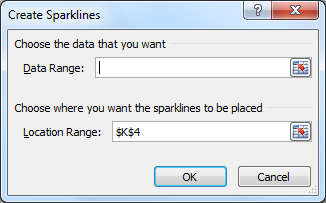
3. Once you choose the type, you will get a pop-up message to choose the Target cell and the Data Range.

4. Update the data range, where your data is present update the cell number in Location Range, where you need to see your graph.

5. Once the range is updated and you click ok, the graphs are generated instantly in the location range.


The choice of the sparkline chart type seems more visual in the online format. The format with gain or loss is very suitable for interpreting balance sheets.

It is very fast, simple and intuitive interpretation of the data table, identify trends and monitor developments. The graphs which were initially quite difficult to read as a set of numbers has now become easily understandable.

Wednesday, October 22, 2014

How to use VLOOKUP and HLOOKUP ?

VlookUp stands for vertical column look up. This formula is used to find the value in the column vertically.

e.g.


We have a table of employee details, where employee id, first name, last name, email id and contact number data is there. The data is in column A, B, C, D and E respectively.


This table contains data for 10000 employees.


Problem : We need to get the email id and contact number data for 43 employees in the output. 

The only input we have is employee id in column H.


Solution - Vlookup


below is the formula which can be used to get the employee details -


Get email id

=VLOOKUP(H2,A:E,4,0)

how it works ?

1. here H2 is the reference employee id for which we need to find the data
2. A:E is the table range where our data is present
3. 4 is the number of the column starting from column A, in which our data is present
4. 0 is for exact match

Similarly use the below formula to  get contact number

=VLOOKUP(H2,A:E,5,0)

Note - 

1. The reference value which we are using to look up the data should be always in the left hand side of the required output data. in above example employee id is on the left side of the data.
2. The data range should start from the reference number column. In above example range is starting from (A;E) where A is employee id column.
3. The number for the output column should be counted from the start column of reference value. In example above we are counting the output value from column A, i.e. our output values are in column 4 and 5.


HlookUp stands for horizontal row look up. This formula is used to find the value in the rows horizontally.

e.g.


We have a table of students marks details, where column headers are 

Student Name
English
Maths
Science
History.

The data is in column A, B, C, D and E respectively.


Data under Student Name column is -

Amol

Vijay

Kiran

Vidya

....
...
..
. and more

This table contains data for 5000 Students.

Problem : We need to find the marks of English and Science, only for Vijay and Vidya or for list of say, 30 students only.

The input we have is the table data in which we can use the user name and the subject name to lookup the required value.


example table:


Solution : Hlookup

below is the formula which can be used to get the required output
=HLOOKUP(B8,$A$1:$E$5,3,0)

result = 32

Below is the screenshot of output table, this table is on cells A8:C10.


how it works ?

1. here B8 is the subject name (English) for which we need to find the data
2. $A$1:$E$5 is the table range where our input data is present
3. 3 is the number of the row starting from column header, in which our data is present
4. 0 is for exact match


Similarly use the below formula to  get data for subject Science
=HLOOKUP(C8,$A$1:$E$5,3,0)

result = 27


There is one challenge in the above formula for which we need to take help of one more formula combining with Hlookup.


Challenge : For 5000 students how to enter the number automatically in step 3 above

Solution : use the MATCH formula to find the row number in which our required data is present

e.g. find row number for Vijay, use the below match formula

=MATCH(A9,$A$1:$A$5)


result = 3


how it works ?

1. here A9 is the Student name (Vijay) for which we need to find the data
2. $A$1:$A$5 is the table range where our input data is present


Now combining the Match formula with Hlookup, we can get the required output without manual entry.

Our actual Hlookup formula:
=HLOOKUP(B8,$A$1:$E$5,3,0)

Formula combined with MATCH:

=HLOOKUP(B8,$A$1:$E$5,MATCH(A9,$A$1:$A$5),0)

result = 32


How to calculate days in a month using Excel formula ?


Below is the formula which can be used to calculate the days in a specific month.


Enter any date in cell B2


Copy paste the below formula in Cell B3


=DAY(DATE(YEAR(B2),MONTH(B2)+1,1)-1)


e.g. if the value in the Cell B2 is 10/22/2014 (i.e. 22nd october 2014)


Then the result in the cell B3 will be 31


How it works ?


we will break up the above formula in  parts.


1. Year(B2)          - this will provide us the year of the date result (2014) 

2. Month(2) + 1   - this will provide us the next months number result (11)
3. 1                     - one is entered to get 1st date of next month 
4. -1                     - this minus one will give us last day of previous month result (10/31/2014)
5. Day                 - this formula will provide us the required day output result (31)

conclusion - Initially we are finding first day of next month, then subtracting it with 1 to get last day of current month and at the end with the help of day formula we get the last day i.e. 31 as output.


Done...